
What this Luau tutorial for beginners teaches#
Roblox Studio scripting lets you give objects behaviour through Luau code. Build one touch pad in stages: find the right place for its Script, print a message, change its appearance, organise its settings, and connect a touch event. Each stage gives you a result to check before adding more code.
What you’ll learn:
- Create a place and find the editing panels.
- Choose between Script, LocalScript, and ModuleScript.
- Print a message and change a Part through code.
- Store values in variables and tables, and pass values into functions.
- Connect a touch event and prevent overlapping activations.
- Diagnose errors and extend the example through small exercises.
Roblox’s coding fundamentals curriculum covers the same underlying language topics. The examples below are original teaching code checked against the linked documentation; we have not run them in Studio. Follow the checkpoints to compare your own results with the intended behaviour. Across our script index, we fetch loaders as text and never run them, so a status is not proof a script works.
No coding experience is needed. Start with the Studio steps below, then practise selecting objects and changing their properties. Keep the Luau learning hub handy when you want another lesson. For now, use a plain place so you can tell which objects and code belong to your project.
How do you install Roblox Studio and prepare a place?#
Roblox Studio is the free desktop editor for Windows and Mac. Follow Roblox’s Studio setup instructions, use the download provided there, open the installer, and sign in after installation. Check the requirements on that page before downloading. The Roblox player app and Studio serve different purposes; this lesson needs the editor.
- Launch Studio and create a new Baseplate place. A plain starting scene keeps the lesson focused on objects you add yourself.
- Open Explorer and Properties from Studio’s window controls. Explorer displays the object hierarchy; Properties lets you inspect the selected object.
- Open Output through the Window menu or the Script toolbar. Keep the panel visible while following the coding steps.
- Save the place with a name you recognise. Save again after each completed exercise so later experiments do not erase your last understood version.
Checkpoint: selecting the baseplate should select an object in Explorer and expose its properties. Common mistake: typing into a script before checking its parent leaves you unsure which object the code belongs to. Select the parent in Explorer before inserting each Script.
Studio layouts can differ, so identify panels by their names rather than their screen positions. The lesson needs the 3D viewport, Explorer, Properties, script editor, and Output; no plugin is required. Before entering code, decide which kind of script belongs in that hierarchy.
Script, LocalScript, or ModuleScript?#
Script type, location, and run context determine where code executes. A server handles shared experience state, while a client is a player’s running copy of the experience. Roblox’s script location reference documents the combinations; the table gives the choices needed for this lesson.
| Object | Execution model | Example placement | Beginner use |
|---|---|---|---|
| Script | Depends on RunContext and location | Inside a Part in Workspace with default Legacy context | Shared touch-pad behaviour |
| LocalScript | Client only, in supported locations | StarterPlayerScripts | A player’s camera or input logic |
| ModuleScript | Executes when required by another script | ServerScriptService for server-only reuse | Returning a reusable function or settings table |
A default Script uses Legacy RunContext and executes as server code in a server container such as Workspace or ServerScriptService. A Script can also use other run contexts, so “Script always means server” is an incomplete rule. Leave RunContext at Legacy for every Script created in this tutorial.
A ModuleScript does not start just because you place it in Explorer. Another script calls require() on it and receives its returned value. Server and client environments have separate module execution; placing a module in a shared location does not make its local state a shared multiplayer database. See the ModuleScript reference before splitting a larger project into modules.
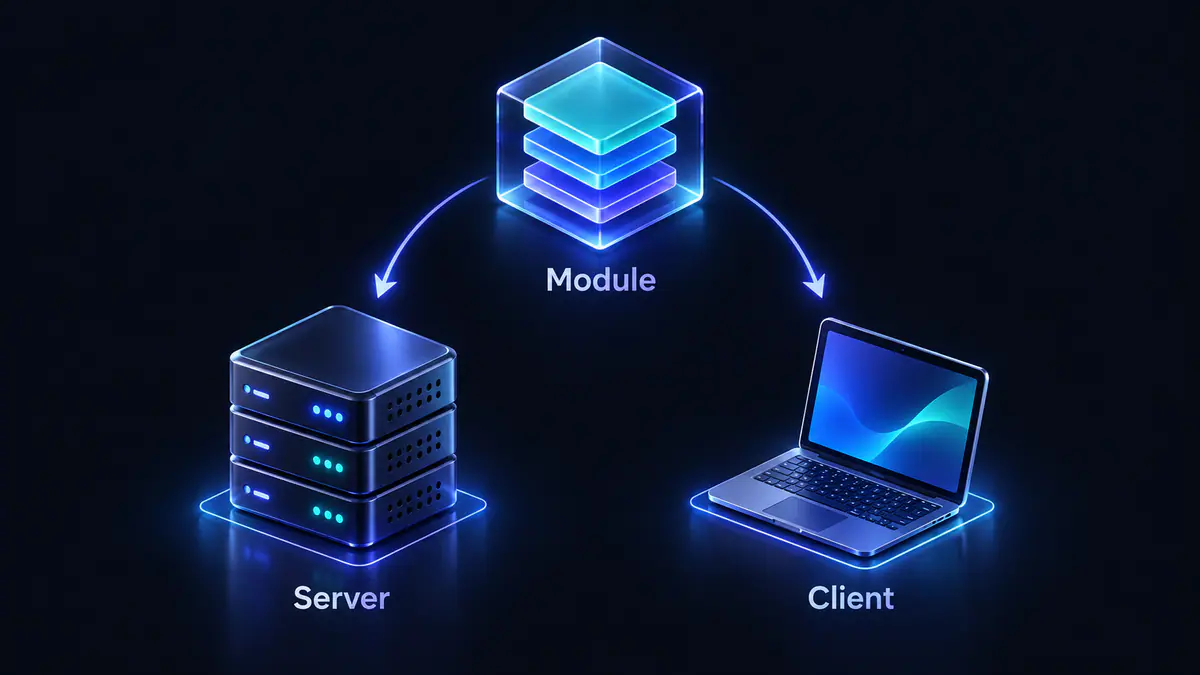
The touch pad changes a world object for the experience, so the lesson uses a server Script. Start with one Script and a message you can recognise in Output. That small check confirms where your code runs before you add an event or a cooldown.
How do you write your first Roblox script?#
Create a Part in Workspace, rename the Part TouchPad, and insert a Script directly inside that Part. Replace the Script’s starter contents with the two lines below. The Script’s name can be TouchPadController; the code does not depend on that name.
print("Touch pad lesson started")
print(script.Parent.Name)
Start a Play session using Studio’s testing controls, then inspect Output. The intended messages are Touch pad lesson started and TouchPad. Stop the session before editing the place again. Roblox describes Play and other simulation choices in its testing modes documentation.
print() sends values to Output. Quotation marks make the first argument a string: literal text rather than an object name or instruction. The second line reads the name of the Script’s parent. With the hierarchy created above, script is the current Script and script.Parent is the Part that contains it.
A missing message is useful evidence. Check whether the Script is inside TouchPad, whether TouchPad is inside Workspace, and whether the session has started. Also check that the Script is enabled and Output filters are not hiding server messages. Copying the same print statement into several scripts makes the source harder to identify.
Checkpoint: explain why renaming the Part changes the second printed value without changing the code. Common mistake: writing print(TouchPad) assumes the object’s name automatically creates a variable; no such variable was declared. Use script.Parent to reach the Part through the hierarchy you created. The next example uses that same reference to change the pad.
Change Part properties with named values#
A Part’s properties control attributes such as its colour, size, and whether physics can move it. Replace the print example with the following code in the same child Script. Keep the Part positioned above the baseplate so the pad is visible rather than buried inside the floor.
local pad = script.Parent

pad.Anchored = true
pad.Size = Vector3.new(8, 1, 8)
pad.Color = Color3.fromRGB(40, 140, 220)

print("Configured", pad.Name)
The chosen dimensions and colour are lesson settings, not required platform values. Vector3.new(8, 1, 8) supplies the three size components. Anchoring keeps this pad stationary; the player character can still move into contact with it. The BasePart reference describes the relevant properties.
Color3.fromRGB() builds a colour from red, green, and blue components in the 0–255 range. The example uses more blue than red to make the idle pad blue. Assigning a quoted colour name to Color is a different value type and is not a substitute for a Color3 value. Consult the Color3 reference when choosing another constructor.
Checkpoint: change only the RGB values, start a fresh session, and compare the pad with your prediction. Common mistake: adjusting a property only during a simulation and expecting the edit to become the saved starting configuration. Make the intended setup changes outside the session, or express the starting values in code.
The name pad saves you from repeating script.Parent throughout the code. Before continuing, point to the Part in Explorer and identify the line that gives the variable its value. That connection matters when you move or copy the Script later.
Variables, functions, and tables in a Roblox scripting tutorial#
Luau variables name values, functions group instructions, and tables collect related values. Study these examples separately before replacing the Script with the complete project. Appending every example into one file can leave duplicate event connections or repeated assignments.
What does a local variable store?#
A local variable stores a value under a name within its scope. Numbers, strings, booleans, and object references serve different purposes in the pad project. Roblox’s variables reference explains the declarations and scope rules.
local cooldownSeconds = 2
local message = "Pad ready"
local busy = false
local pad = script.Parent

print(message, cooldownSeconds, busy, pad.Name)
cooldownSeconds stores a number, message stores text, and busy stores a boolean. pad refers to an existing object; the assignment does not create another Part. Changing pad.Color changes that object’s property, while assigning a new value to a variable changes what the variable holds.
Use local for the lesson’s variables so their scope is explicit. A variable declared inside a function is not available everywhere outside that function. Name settings for their role: cooldownSeconds explains a unit and purpose that x would hide. Keep the unit in a timing variable’s name so you can read a later wait without guessing what the number means. Next, use a function to give an action its own name.
How do functions accept values and return results?#
A function can receive arguments through parameters and can return a result to its caller. A function definition describes the action; a call requests that action. The distinction matters when an event will call the function later. Roblox documents both forms in its functions reference.
local pad = script.Parent

local function paintPad(colour)
    pad.Color = colour
end

local function double(number)
    return number * 2
end

paintPad(Color3.fromRGB(40, 140, 220))
print(double(3))
colour is a parameter whose value comes from the argument passed to paintPad. double(3) returns 6, which is then passed to print. The example’s arithmetic is simply a way to distinguish returning a value from changing a property.
Define each local function before the calls shown here. Match opening parentheses and close each function body with end. For the pad, separating a named action from its trigger makes the eventual event connection easier to read. The next example gathers the pad’s timing and colours in a settings table, where you can change them without searching through the event handler.
Tables and conditions organise the pad’s settings#
A table stores multiple values using keys. Named keys suit configuration because settings.cooldownSeconds carries more meaning than an unexplained position. An array uses consecutive numeric keys, with its first conventional element at index 1. Roblox’s tables guide covers both arrangements.
local settings = {
    cooldownSeconds = 2,
    idleColour = Color3.fromRGB(40, 140, 220),
    activeColour = Color3.fromRGB(30, 220, 160),
}

local practiceNames = {"Print", "Paint", "Touch"}
print(settings.cooldownSeconds)
print(practiceNames[1])
Braces construct a table; commas separate entries. Dot access reads the named field, while brackets select the numeric key in the array. Avoid a missing or misspelled setting name: reading a nonexistent key produces nil, not the intended fallback value.
An if statement decides whether to execute a block. Equality uses ==; assignment uses =. A guard such as if busy then return end exits the current function when the pad is already active. Roblox’s control structures guide explains conditional branches; the next section applies a guard to a physical event.
How does Touched connect a collision to a function?#
Touched is an event on BasePart that passes the other contacting part into a connected function. The event supplies the argument; the callback’s parameter name is your choice. Replace the current Script with this short example to see which part names arrive in Output before adding the player filter.
local pad = script.Parent

local function onTouched(otherPart)
    print("Contact from", otherPart.Name)
end

pad.Touched:Connect(onTouched)
Connect(onTouched) passes the function itself. Writing Connect(onTouched()) would call the function immediately and pass its return value instead. A character has multiple parts, so one movement onto the pad can produce several contact messages. Touched also reports physical contacts that are unrelated to a player.
Touch detection depends on physics contact. Keep CanTouch enabled, use a stationary anchored pad, and walk the moving character onto it during Play. Moving two anchored objects into apparent overlap is not an equivalent observation. The Touched API description explains the physical-contact conditions.
Checkpoint: identify an incoming part name in Output and explain why that name is not necessarily the player’s name. Common mistake: treating every contact as one complete player action. The final project adds a cooldown so several contacts cannot start overlapping colour changes. Keep the contact-printing example separate: replacing it avoids leaving an extra event connection in your Script.
Build a colour-changing touch pad with debounce#
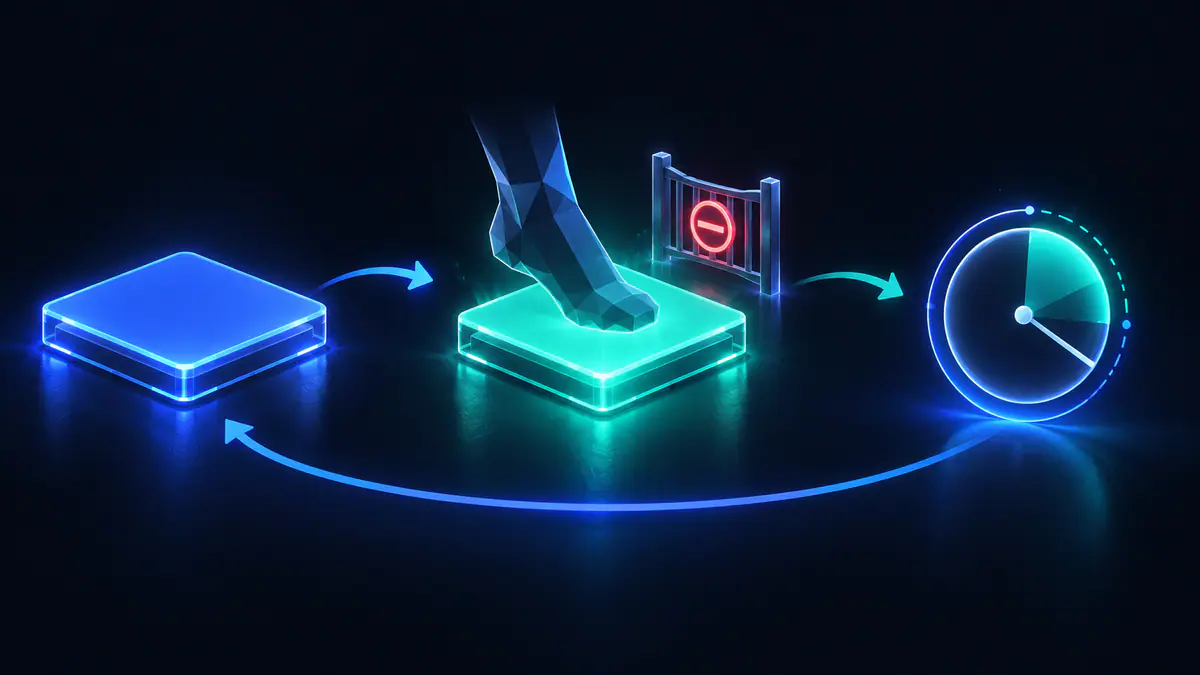
The complete project changes the pad from blue to teal when a direct child part of a player character touches it. A shared boolean blocks further activations during the colour change. Replace all earlier code in the child Script with this example; retain only one controller for the pad.
- Select
TouchPadoutside a Play session. Set its size to8, 1, 8, enable Anchored, CanCollide, and CanTouch, and position it just above the baseplate within walking distance of the spawn. - Confirm the Script remains directly inside the Part with Legacy RunContext. The variable
script.Parentmust refer to that Part. - Paste the full example, then inspect the indentation and matching
endstatements before starting Play.
local Players = game:GetService("Players")
local pad = script.Parent

local settings = {
    cooldownSeconds = 2,
    idleColour = Color3.fromRGB(40, 140, 220),
    activeColour = Color3.fromRGB(30, 220, 160),
}

local busy = false
pad.Color = settings.idleColour

local function onTouched(otherPart)
    if busy then
        return
    end

    local character = otherPart.Parent
    if not character or not character:IsA("Model") then
        return
    end

    local player = Players:GetPlayerFromCharacter(character)
    if not player then
        return
    end

    busy = true
    pad.Color = settings.activeColour
    print("Pad activated by", player.Name)

    task.wait(settings.cooldownSeconds)

    pad.Color = settings.idleColour
    busy = false
end

pad.Touched:Connect(onTouched)
The first guard rejects a contact while busy is true. The next guards reject a missing parent, a parent outside the Model class, and a model that does not correspond to a player character. GetPlayerFromCharacter() provides that player lookup; the model must be the player’s character, not merely an object named after a player.
Set busy = true before the wait. A waiting callback leaves time for other events to arrive; those callbacks must see the pad as busy. Roblox’s debounce guidance explains why repeated touch events need this kind of gate.
task.wait(settings.cooldownSeconds) yields the current callback. The requested two seconds is a minimum scheduling interval rather than a precise stopwatch promise; resumption occurs on a subsequent Heartbeat after the duration has elapsed. The task library reference documents that scheduling behaviour.
Touch-pad checks, limits, and script risks#
The pad should start blue, turn teal on an accepted contact, and return to blue after the wait. Walk onto the pad, step away, and approach again after the reset. Remaining still does not promise another event when the timer ends; a cooldown reset is not a new physical contact.
The debounce belongs to the pad, so one player’s activation temporarily blocks everyone. That design fits one shared colour effect. A per-player reward would need separate state keyed by player and a clear rule for cleaning up that state; changing the boolean’s name would not implement that design.
The parent lookup deliberately recognises only contact parts directly inside the character model. An accessory Handle usually has an Accessory parent, so that contact is rejected. The example does not award currency, persist progress, recognise every character hierarchy, or provide a general interaction system. Keep those limits in mind when you adapt the example: a colour effect and a reward system need different acceptance rules.
Common mistake: placing the reset inside a branch that never executes leaves the pad permanently busy. Trace one accepted contact from the first guard to the final assignment before adding a branch. Then check the hierarchy separately. A reset in the wrong place is a logic problem; a Script under the wrong object is a placement problem.
Script-index statuses cannot establish what code will do in an experience. We fetch loaders as text and never run them, so a status is not proof a script works. Keep this Studio exercise focused on the code you can read and explain before adding anything else.
Why does a Roblox Studio script show no result?#
A missing result can come from syntax, a failed object lookup, the wrong execution location, or an event that never arrives. Start with Output, then check one assumption at a time. Roblox’s Output reference describes message, context, and source controls.
| Observation | First check | Focused correction |
|---|---|---|
| No startup message | Session, Script location, enabled state, Output filters | Restore the two-line print example in the same Script |
| Parser error before any message | Nearby quotes, parentheses, and block endings | Correct the earliest reported syntax problem |
| Property access error | Value of script.Parent | Put the Script back inside the Part |
| Startup message but no touch message | Pad placement and CanTouch | Walk onto the pad during Play |
| Contact messages but no colour change | Character filter and duplicate controllers | Inspect the contact parent and keep one controller |
| Pad stays teal | Error after activation or missing reset | Read the first error and trace the reset path |
Turn on source details and read the reported script and line. A line identifies where the engine encountered the problem, while the cause may be an earlier missing delimiter. Resolve the first relevant error, restart the session, and inspect the new output before changing another part of the file.
For hierarchy problems, temporarily add print(otherPart.Name, otherPart.Parent) inside the callback before the character lookup. Remove the diagnostic after understanding the rejected contact. Do not remove every guard just to make a visual change happen; each guard expresses the project’s acceptance rule.
An object lookup such as FindFirstChild() can return nil when no matching child exists. If a later exercise uses that method, check the result before reading its properties. The Instance reference documents this return behaviour and the distinction between finding and waiting for a child.
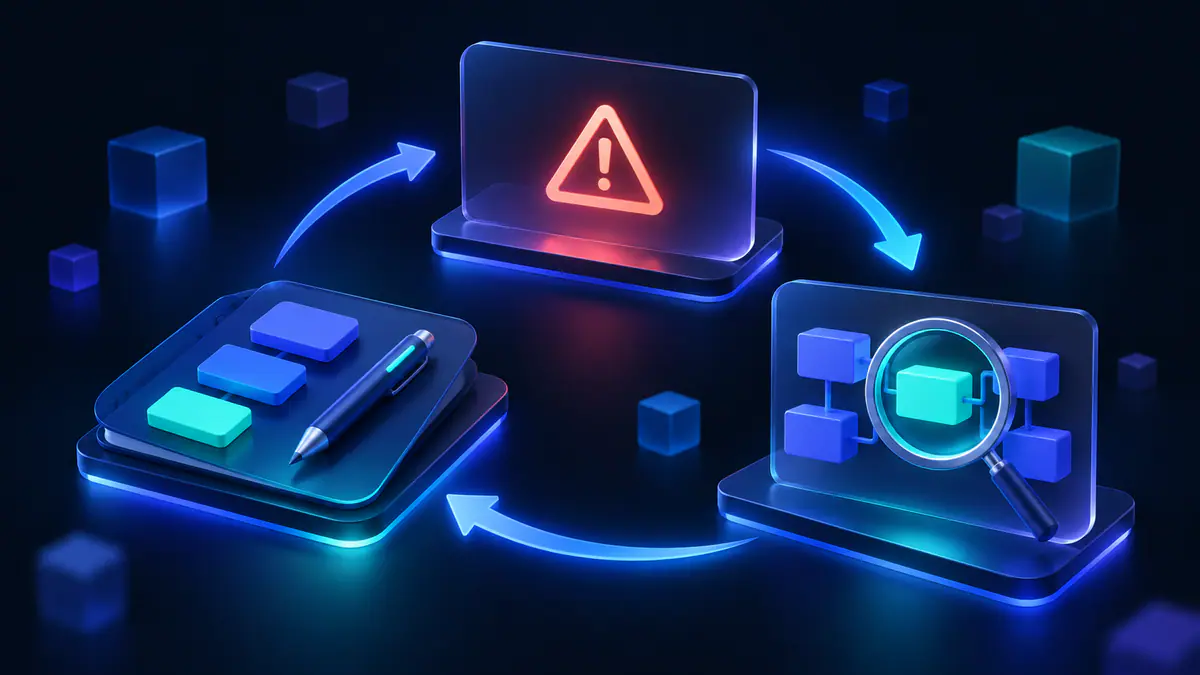
A useful debugging note records the setup, expected result, observation, and one change. Practice exercises turn that habit into a repeatable way to learn Luau.
Practice exercises with explained answers#
The exercises change one concept at a time. Predict the result before editing, keep a copy of the complete project, and restore that baseline between exercises. Use each answer to check your reasoning as well as your edited code. A visible colour change tells you less than being able to explain which line caused it.
Exercise 1: Change the active colour#
Task: make the accepted-touch colour orange while leaving the idle colour blue. Identify the smallest edit before reading the answer. Changing the startup assignment would alter the wrong state, because startup uses the idle setting.
Answer: replace only the active setting with activeColour = Color3.fromRGB(240, 140, 30),. The callback already reads that field after accepting a player contact. The event handler stays the same because it already reads settings.activeColour. After the change, check both states: the pad should still begin blue, then use orange only for an accepted activation.
Exercise 2: Count accepted activations#
Task: print an increasing count for accepted activations, excluding contacts rejected during the cooldown. Decide where the count must live and where it must increase. A counter declared inside the callback would start again for each call.
Answer: add local activationCount = 0 beside local busy = false. Immediately after busy = true, add activationCount += 1 and print("Accepted activations", activationCount). The count increases only after the player filter and busy guard have accepted the event. A fresh Script session starts that local count again.
Exercise 3: Return a message from a function#
Task: create a function that receives a pad name and returns a sentence. Print the returned sentence separately. Avoid putting print() inside the function, because the exercise separates producing a value from displaying it.
local function makeMessage(padName)
    return "Ready: " .. padName
end

local message = makeMessage(script.Parent.Name)
print(message)
Answer: the .. operator joins the two strings, and return supplies the completed string to the caller. The local message receives that result before print displays it. A function can therefore support several callers without deciding where each caller should send the result.
Exercise 4: Explain a misplaced debounce#
Task: explain what changes if busy = true moves below task.wait(). Read the callback as a timeline: one contact reaches the wait, then another contact arrives before the first resumes. State which value the second callback reads.
Answer: busy remains false during that first wait, allowing another eligible contact to pass the initial guard. Multiple accepted callbacks can then overlap and reset the same colour independently. Moving the assignment back before the wait restores the intended shared gate. The location of the assignment, not merely its presence, defines the behaviour.
After each exercise, write down the line you changed and its effect. If your prediction was wrong, trace the value from its assignment to the line that uses it. Restore the complete project before starting the next exercise so earlier edits do not confuse the result.
Continue after this Luau tutorial for beginners#
The next step after this Luau tutorial for beginners is to rebuild the pad from a blank Script. Explain its object reference, settings, event connection, guards, and reset as you go. Revisit any line you can only guess at, then make one change and predict the result before pressing Play.
Use the Luau and Lua comparison when another tutorial uses unfamiliar language terminology. Continue with RemoteEvents and RemoteFunctions when a client interface needs to request a server action. Roblox’s client-server overview explains the underlying separation.
Read Roblox game security basics before designing rewards or accepting values sent by players. A visual touch-pad debounce controls repeated callbacks; a reward system needs additional validation rules suited to the action. Before adding another interaction, write down what should trigger it, which contacts it should reject, and whether its cooldown belongs to one player or everyone. Those decisions give you a concrete plan for the next piece of code.